Change your password
-
After logging in, open the “Authentication” tab in the Account section.
-
In the Change Password section, fill in the following fields:
- Current Password: enter the password currently in use.
- New Password: type the new password you want to set.
- Confirm Password: re-enter the new password for confirmation.
- Click the “Change Password” button to apply the changes.
Requirements for the new password
- It must be long and random to ensure a high level of security.
- It is recommended to use a combination of uppercase, lowercase, numbers, and special characters.
- Avoid easy-to-guess passwords such as “123456” or “password”.
Recover your password
If you forgot your ActivePager account password, follow these steps to reset it.
- Go to the Login screen.
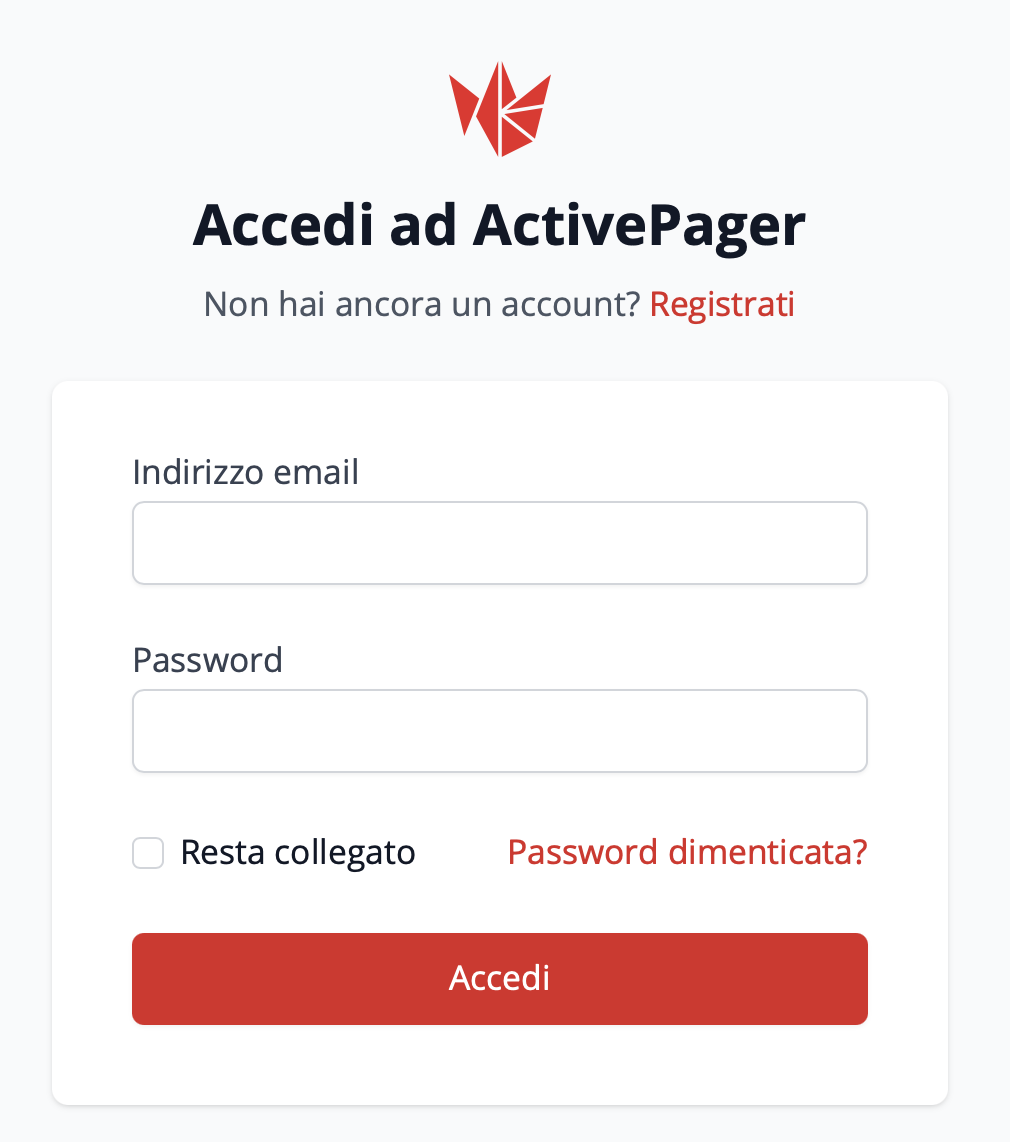
- Click “Forgot password?”.
-
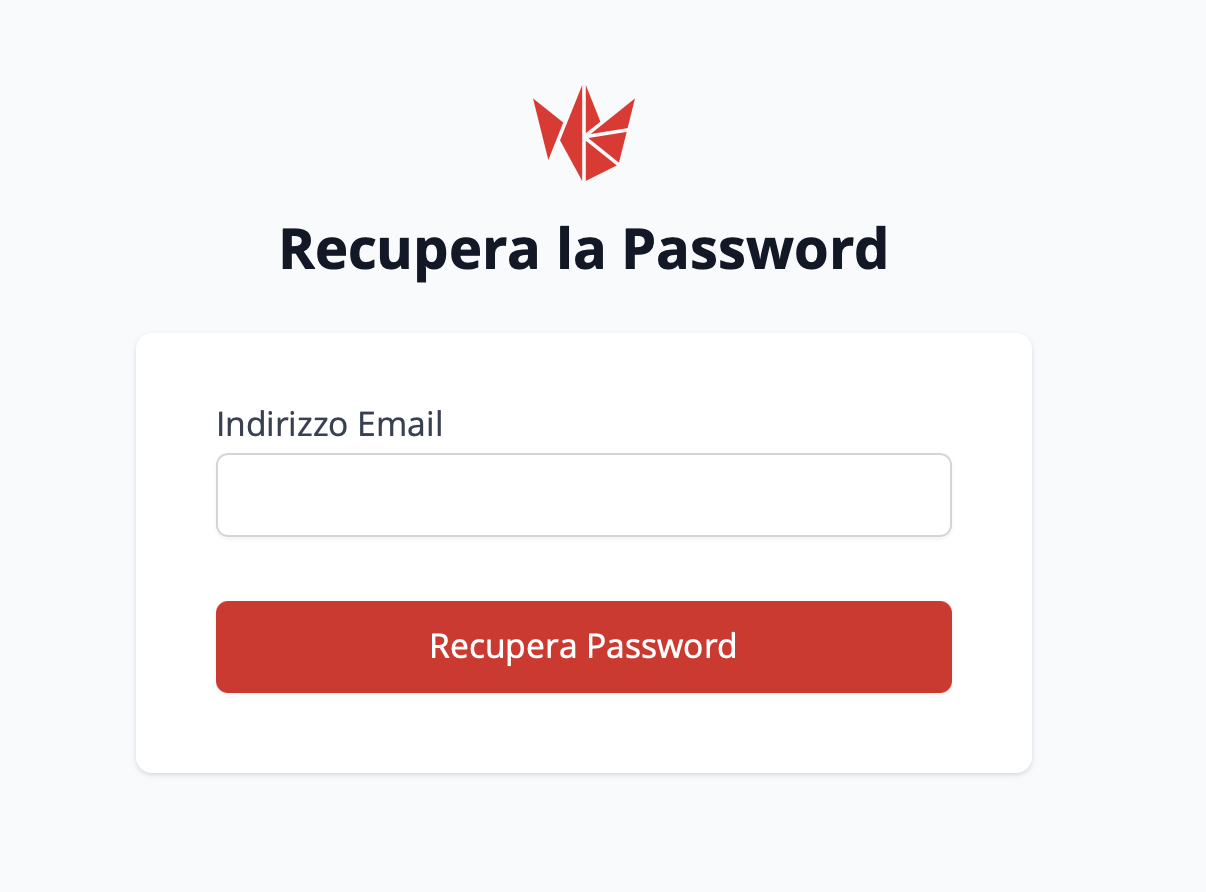
You will be redirected to the “Recover Password” screen.
-
Enter the email address associated with your account.
-
Click “Recover Password”.
If the email address is correct, you will receive an email with instructions to reset your password.
Password reset email
-
Check the inbox associated with your account.
-
Open the email with the subject “Reset Password” sent by ActivePager.
-
Click the “Reset Password” button or, if the button does not work, copy and paste the provided link into your browser.
After clicking the link, you will be redirected to the password reset page.
-
Enter a new secure password and confirm it.
-
Click “Change Password” to confirm the change.
-
You can now return to the login screen and sign in with your new password.
Important notes:
✅ Make sure the email you entered is correct and associated with your account.
✅ Check the Spam/Junk folder if you do not receive the email.
✅ Use a strong and unique password to protect your account.
Password recovery for another user (administrators and users with permissions)
If you are an administrator or have user management permissions, you can start the password recovery process for another user directly from their profile.
Access the user's profile
-
Go to the Users section.
-
Search for and select the user for whom you want to start password recovery.
-
On the user profile screen, click the three-dot button next to Edit.
Start password recovery
-
From the drop-down menu, select “Password Recovery”.
-
A confirmation notification of the email being sent will appear.
Password reset email
The user will receive an email with the link to reset the password, exactly as in the standard password recovery procedure.
Important notes:
✅ This feature is available only to administrators or users with the appropriate permissions.
✅ The user will receive the reset email and must follow the procedure to choose a new password.
✅ If the user does not receive the email, suggest checking the spam folder.